
What is an IVR Campaign?
 In an IVR campaign, the dialer generates calls to contacts from a list and forward the call to an IVR only when the contact answers the call.
This type of campaign is usually used for surveys and does not depend on any queue status or availability of agent in a queue.
How it works
The Dialer originates calls and waits for the contact to answer for a predefined Originate Timeout [secs].
If the contact answers before the timeout expires, the call is forwarded to the IVR project (see Cally Square for more information about IVR Projects); otherwise the call originate status will be set to No Answer.
How to set up an IVR Campaign
IVR Campaign Requirements
For making an IVR Campaign work, what you need to do in advance is:
- Create a Trunk in the Section Tools (see Trunks): a Trunk is a SIP connection between your Contact Center (Motion server) and a VOIP provider. Motion Dialer generates calls through a trunk to the VOIP provider that routes the calls to the called individuals.
- Create the Intervals in the Section Tools (see Time Intervals): The time interval defines the time and day during which the dialer is allowed to perform outbound calls. You can create multiple sub-intervals to manage calls on different time, day or month intervals (Time intervals will work only if they are inside the range defined as Global Interval of the Campaign, see Advanced for more information)
- Create an IVR Project in the section Cally Square (refer to the Cally Square wiki pages for for creating an IVR project)
- Create List for the IVR Campaign and Upload Contacts in the Section Contacts Manager (see Contacts Manager Setup): You need to create a list of contacts to be used in the IVR campaign for the dialer to call. You can add multiple contact lists to an IVR campaign
The IVR Campaign Section
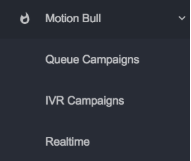
You can find the IVR Campaign section under the Motion Dialer menu.
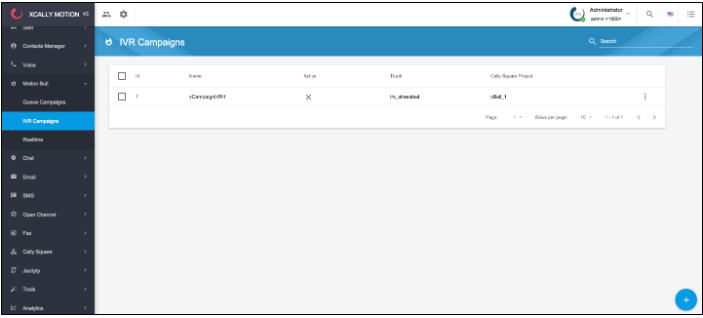
Create the IVR Campaign
You can create any number of IVR campaigns that run simultaneously using the Add button  and choose the IVR campaign general parameters:
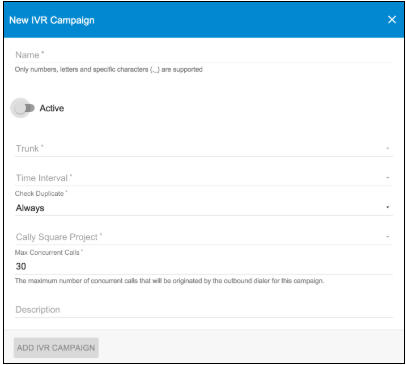
Then edit the IVR campaign and set its parameters:
- Name: the name of the campaign
- Active Flag: Activate or Deactivate the IVR Campaign
- Trunk: the trunk created before
- Time Interval: the time interval created before
- Check Duplicate: if you want the system checks for duplicates when loading contacts
- Cally Square project: project created before and chosen from the list
- Max concurrent calls: the maximum number of concurrent calls that will be originated by the dialer for this campaign (Default=30)
- Description: a free description of the campaign
The Check Duplicate Option, can be set to:
- Never will skip any check about the number being already loaded into the system (this may cause a multiple presence of the same number in the Hopper or the Final list)
- Always (default value) means that the system before loading the number checks if it is not already in any list (Hopper or Final)
- Only if Open means that the system before loading the number checks if it is not already in the Hopper list only
Once the IVR Campaign is added, you need to edit it in order to configure its features, choosing it from the list of IVR Campaigns as shown in the image below:
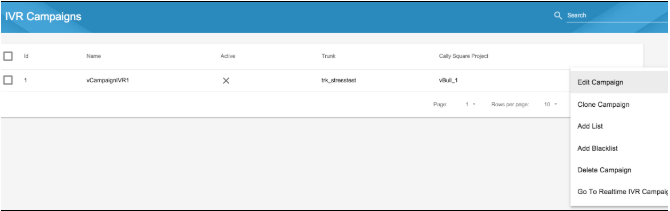
From the dropdown menu on the right, you can quickly set some important configurations:
- Clone Campaign
- Add List
- Add Blacklist
- Delete Campaign
You can perform these actions also from the Edit Campaign section, using the buttons on the top bar 
In order to access to the complete Edit section, you should click on Edit Campaign.


- 5 buttons, to manage IVR campaign associated Lists and Blacklists, to Clone or to Reset the Campaign and to access theRealtime View of this specific IVR Campaign (see Realtime view)
- 4 Tabs containing the IVR campaign parameters (Settings, Campaigns, Retry Settings and Advanced).
- 4 Tabs containing the IVR campaign logs (Hopper, History, Final, Blacklist).
Configuring the IVR Campaign
Settings
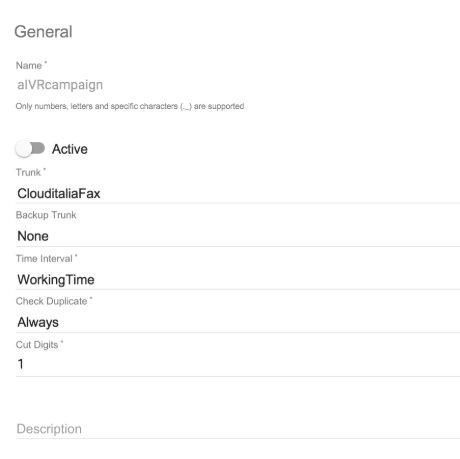
The General Settings of the IVR Campaign can be modified here: Name, Trunk and Trunk Backup (if the main trunk is unreachable, the system will check if the trunk backup is available), Check Duplicate, Cut Digits, Time interval and an optional Description.
Please note that from the General Settings you can also START and STOP the Queue Campaign (set Active/Inactive).
Campaign
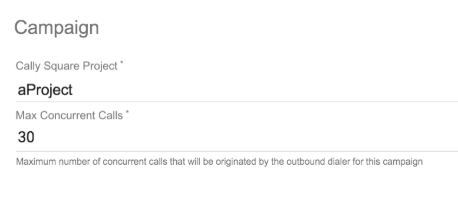
- the name of the chosen IVR Callysquare Project
- Max concurrent calls: the maximum number of concurrent calls that will be originated by the dialer for this campaign (Default=30)
Originate
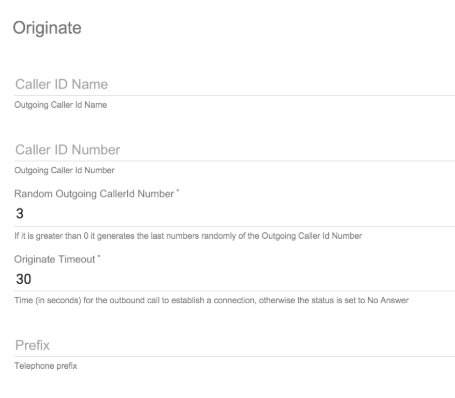
- Caller ID Name: when the dialer generates calls to contacts, it will set the outgoing caller ID name.
- Caller ID Number: when the dialer generate calls to contacts, it will set the outgoing caller ID number.
- Random Outgoing CallerId Number: the number of digits (starting from the end) to replace with random digits (0= none).
- Originate Timeout: time in seconds the dialer waits for a contact to answer the call. If the call is not answered within the originate timeout, the call originate status will be set to No Answer and this contact will be recalled (according to global max retries, no answer max retries and no answer retry time set in the Retry Settings Section)
- Prefix: the prefix to insert to the number dialed (if any)
Retry Settings
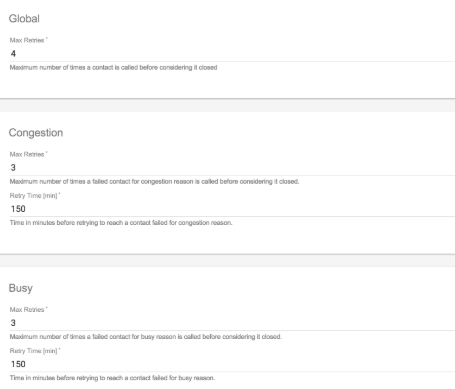
Global
- Global max retries: the maximum number of times the dialer will recall a contact irrespective of the reason the call failed (Default=4). The dialer tries to call the contact up to the number of times set in global max retries field, then it will consider the contact closed and doesn't call him again, even if unsuccessful.
Congestion
- Congestion Max retries: the maximum number of times the dialer will recall a contact failed for congestion reason (Default=3).
- Congestion Retry Time: time in minutes the dialer will wait before recalling a contact failed for congestion reason (Default=150). The dialer will call for congestion up to the global max retries is not reached. If congestion max retries limit is reached before global max retries, the contact will be closed for congestion and will not be called again.
Busy
- Busy Max retries: the maximum number of times the dialer will recall a contact failed for busy reason (Default=3).
- Busy Retry Time: time in minutes the dialer will wait before calling again a contact failed for busy reason (Default=150). The dialer will recall after busy up to the global max retries is not reached. If busy max retries limit is reached before global max retries, the contact will be closed for busy and will not be called again.
No Answer
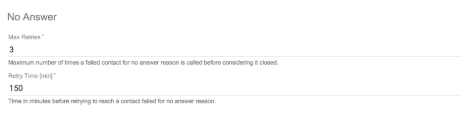
- No Answer Max retries: the maximum number of times the dialer will recall a contact failed for no answer reason (Default=3).
- No Answer Retry Time: time in minutes the dialer will wait before recalling a contact failed for no answer reason (Default=150). The dialer will recall after no answer up to the global max retries is not reached. If no answer max retries limit is reached before global max retries, the contact will be closed for no answer and will not be called again.
Advanced

-
Order by scheduledat: choose how to order the list in the Hopper (desc/asc)
Remember: the Contacts in the Hopper are dialed by Priority first, then by ScheduledAt
Global Interval

-
Global Interval: before calling a contact the system checks if the global interval is OK and then it considers the other interval set (default: 07:00-22:00,*,*,*)
Please note that the system default Global Interval is from 7 AM to 10 PM: it means that the campaign will never be operational out of this range unless you change it, even if the Time Interval in the General Settings is set to always.
We advise you to pay attention to the regulations that apply to calls campaigns in your country.
The include syntax is defined like this:
<time range>,<days of week>,<days of month>,<months>
where:
<time range>= <hour>':'<minute>'-'<hour>':'<minute>
|"*"
<days of week> = <dayname>
| <dayname>'-'<dayname>
| "*"
<dayname> = "sun" | "mon" | "tue" | "wed" | "thu" | "fri" | "sat"
<days of month> = <daynum>
| <daynum>'-'<daynum>
| "*"
<daynum> = a number, 1 to 31, inclusive
<hour> = a number, 0 to 23, inclusive
<minute> = a number, 0 to 59, inclusive
<months> = <monthname>
| <monthname>'-'<monthname>
| "*"
<monthname> = "jan" | "feb" | "mar" | "apr" | "may" | "jun" | "jul" | "aug" | "sep" | "oct" | "nov" | "dec"
daynames and monthnames are not case-sensitive.
If you replace an option with *, it is ignored when matching
Timezone

-
Timezone: before calling a contact the system checks if the time is right. In this field you can choose a different time zone for the campaign.
Example: if you have a server in Italy and you configure a global interval (18:00-20:00,*,*,*) and timezone Australia/Sydney, the system will start to call in Sydney when it is 18:00 and in Italy when it is 10:00.
Pay attention that the timezone is related to the campaign (not to single contacts). It is better to separate the list of contacts with different timezone
-
AMD (Answering Machine Detection): set this flag if you want the system try to detect Answering Machine. When you set this flag to yes you need to insert all the parameters (see the picture below) which are necessary in order to tune your actual system properly.

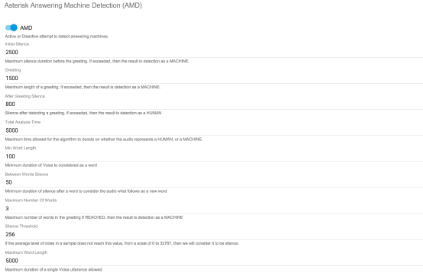
Be sure you are enough skilled to do this: this may cause losing contacts interactions if the system doesn't recognize properly a human from a machine answering!
For more information see asterisk documentation Here.
Add List to IVR Campaign
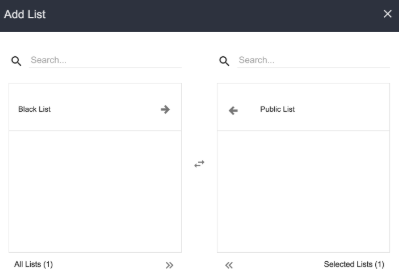
You need to add an already existing list of contacts to be used in the campaign for the dialer to call. When you add a list in the campaign, all contacts in the list are placed in the Hopper and will be called by the dialer.
You can add multiple contact lists to a queue campaign.
See Create a list for creating a List of Contacts and Upload contacts for uploading contacts in the list created.
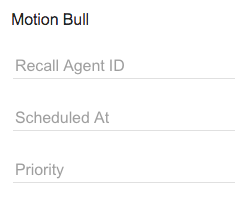
Read carefully the specific info to be inserted when uploading a list of contacts that will be used for a campaign:
If you remove a list from a campaign and add it again:
- only open contacts are placed in the Hopper and will be dialed by the dialer.
- closed contacts (contacts that are already in the Hopper Final) will not be placed Hopper and will not be dialed by the dialer.
Add BlackList to IVR campaign
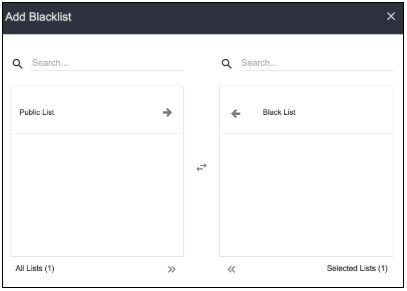
If you have list of contacts you want to exclude from the IVR campaign, add it as blacklist and the dialer will skip these contacts during the automatic dialing. You can use different blacklist for different IVR campaigns.
See Create a list for creating a Blacklist and Upload contacts for uploading contacts in the list created.
This is an optional setting
Start the IVR Campaign
Go under the General Settings IVR Campaign and enable "Active".
The Dialer will now start to originate calls and route them to the IVR Project!
Monitoring IVR campaign results
The Hopper Sections (Hopper, History, Final) and Blacklist
The Sections useful for monitoring IVR Campaign logs are the following:
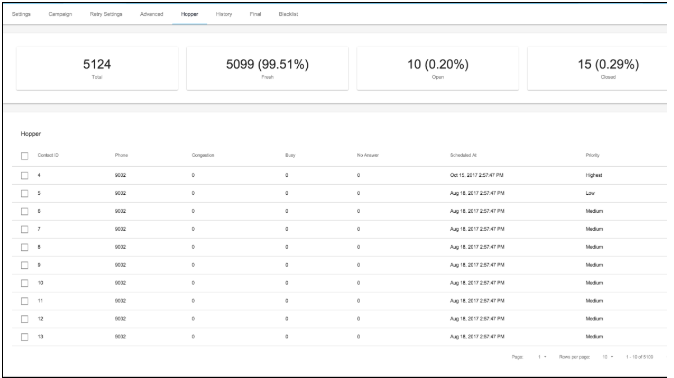
Where the four widgets on top show:
- Total: the total number of contacts in the list
- Fresh: total number of contacts that are in line to be dialed by the dialer for the first time
- Open: total number of contacts that have been dialed (at least once) and are still in line to be dialed
- Closed: is the total number of contacts already called and closed
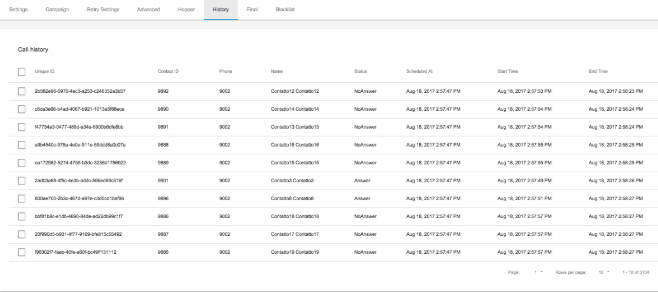
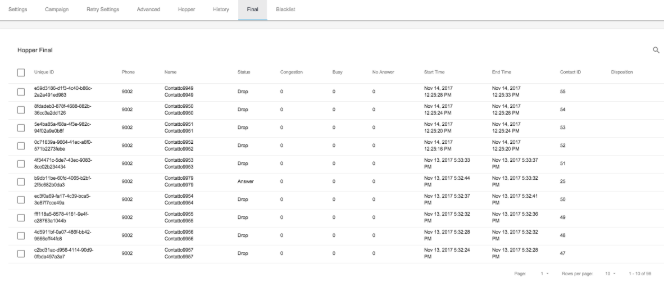
You can copy one or many contacts from Final to Hopper: they will be restored in the Hopper and the Dialer will call them again.
This function is not allowed:
- if they have Final Status=Answered
- if a Contact Id or Phone is already in the Hopper (this prevents multiple identical contacts to be restored in the Hopper) for the same campaign
Once you restore a contact, this is not moved from Final to the Hopper but a new entry is added to the Hopper.
In details, you can restore contacts in several ways:
- click on
 up right and select one of the Calls Status List type to restore, choosing among those available from the pop-up screen:
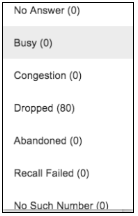
In this case, all contacts whose phone id is not already in the Hopper will be restored.
- select one item in the list and click on
 and then on
  to restore a single contact (only if the contact id is not already in the Hopper)
 - select one or more items clicking the corresponding checkboxes and then click the icon
 (only if the contact id is not already in the Hopper)
- Hopper: contains list of contacts that are going to be called by the dialer at a scheduled time:
-
- When you add a list in a queue campaign, all contacts in the list are placed in the hopper.
- When you add new contacts in the associated list, the system will automatically add the new contacts to the hopper.
The contacts scheduled at the same time will be called according to their priority level.
The contacts Priority and Scheduled At can be changed (Edit the Hopper Contact).
-
Check how to configure ordering by ScheduledAt here .
Note: Before placing a call to a contact in the hopper, the dialer checks if the contact exists in the blacklist and skips it if it does exist.
- Hopper History: contains history of calls originated by the dialer. Status, start time and end time of every call that was dialed by the dialer can be viewed in the hopper history log.
Click here for the Calls Status List Table
- Hopper Final: contains list of closed contacts (because successfully managed or for other reasons).
Click here for the Calls Status List Table
- Blacklist: contains list of contacts that are excluded from the queue campaign
The Tag Blacklist contains lists of contacts that must be excluded from the IVR campaign.
Key Points
- If a contact is successfully connected to an agent, the contact is moved from the Hopper to Hopper Final and will not be called again.
- If a call has failed, the number of times it failed (for congestion, busy and no answer) will be shown in the Hopper as long as the max retries limit is not reached. When the max retries are exhausted, the contact will be moved to the Hopper Final and the status will show the reason why the contact has been closed (Click here for the Calls Status List Table).
- Once contacts are moved to the Hopper Final, if you remove the list from the campaign and add it again, only open contacts (contacts that are not in the Hopper Final) are placed in the Hopper and dialed by the dialer. This will avoid unnecessary calls to closed contacts.
Comments
0 comments
Please sign in to leave a comment.