
What is a Queue Campaign?
 In a queue campaign, the dialer generates calls to contacts in a list and puts the call in a queue only when the contact answers the call. Agents available in the queue will be able to answer and connect to the contact.
For more information about dialers see Here.
How it works
The Motion Bull Dialer originates calls and waits for the contact to answer for a predefined Originate Timeout [secs].
If the contact answers before the timeout expires, the call is forwarded to the queue; otherwise, the call Originate Status will be set to No Answer.
Once the call is placed in the queue, the dialer waits for predefined Queue Timeout [secs] and drops the call if the timeout expires before being answered by an agent in the queue.
- Progressive Dialing: the outbound dialer will generate one call as soon as there is an available agent in the queue. This method avoids the risk of abandoned calls.
- Booked Progressive Dialing: the outbound dialer will book an agent (the first available in the queue) before to start the call.
- Power Dialing: this method is similar to progressive dialing but calls are generated according to a defined power level, i.e. the number of contacts to call for each available agent.
For this method you need to choose the Power Level: the range is 1-10 (pay attention not to increase too much this value in order not to lose calls).
- Predictive Dialing: the dialer uses the predictive interval to gather statistics about the calls and predicts the number of contacts to call that optimizes the predictive Optimization Factor, Drop rate or Agent Busy Factor:
-
-
Drop rate: is the number of dropped calls per total number of generated calls. Low predictive optimization percentage will minimize the number of dropped calls.
-
Agent busy factor: is concerned with agents idle time. High predictive optimization percentage will maximize agents working time.
-
For this dialing method you need to set also the Predictive Optimization Percentage and the Predictive Interval: the range is between 1-95
-
Preview Dialing: is a very simple method. The dialer selects a customer record from a call list and proposes this call to an agent (the "preview" phase), who can accept it and let the dialer start the call or refuse it. In this case, the Agent will stay on the line during the progress of the call, until the customer answers or any other event (line busy, call unanswered, and so on)
For more info see Dialing Methods
Tip
Note: You can choose to use progressive and power dialing for any number of agents in a queue whereas a minimum of 30 agents in the queue is recommended for predictive dialing.
How to set up a Queue Campaign
Queue Campaign Requirements
For making a Queue Campaign work, what you need to do in advance is:
- Create a Trunk in the Section Tools-->Trunks (see Trunks): a Trunk is a SIP connection between your Contact Center (Motion server) and a VOIP provider. Motion Dialer generates calls through a trunk to the VOIP provider that routes the calls to the called contacts.
- Create the Intervals in the Section Tools→Intervals (see Time Intervals): The time interval defines the time and day during which the dialer is allowed to perform outbound calls. You can create multiple sub-intervals to manage calls on different time, day or month intervals
Time intervals will work only if they are in the range defined as Global Interval of the Campaign: see Advanced for more info)
After creating a Queue Campaign what you need to do to make it work is:
- Create Lists for it and after that Upload contacts in the Section Contacts Manager (see how to do it in the sections Lists and Contacts): this would be the list of contacts to use in the queue campaign for the dialer to call. You can add multiple contact lists to a queue campaign. You can create a list can containing the numbers you do not want to call (in this case we call it blacklist).
- Create the Agents / Teams in the Section Staff (see how to do it in Define the Staff): To manage a queue campaign, you need to create Agents that will be connected to contacts called by the dialer. After creating the Campaign you can add the Agents to it.
The Queue Campaign Section
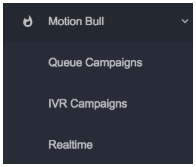
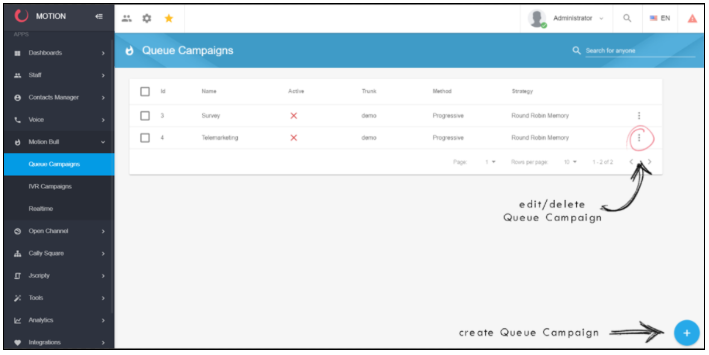
You can find the Queue Campaign section under the Motion Bull menu.
Create the Queue Campaign
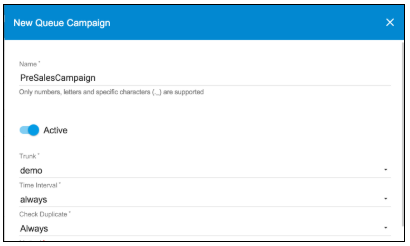
You can create any number of queue campaigns that run simultaneously using the  Add button and choose the queue campaign general parameters:
-
Name: the name of the campaign
-
Active Flag: Activate or Deactivate the Queue Campaign
-
Trunk: the trunk created before
-
TimeInterval: the time interval created before
- Check Duplicate: Choose among "Always", "Never" or "Only if Open" (see below for an explanation of this feature)
-
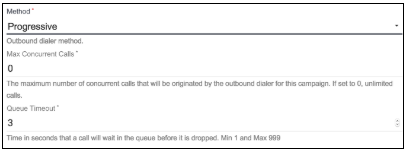
Method: choose the dialing method you prefer (see Dialing Methods):
-
- if Progressive you just need to insert the following parameters:
- Max concurrent calls: the maximum number of concurrent calls that will be originated by the dialer for this campaign (where 0=unlimited calls)
- Queue Timeout: time in seconds the dialer waits for a call in the queue to be answered before dropping it. If the call is dropped, the dialer will not recall the contact in this queue campaign (Default value=3)
- if Progressive you just need to insert the following parameters:
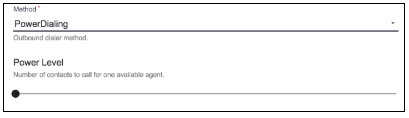
if Power you will be prompted to insert the following parameters:
- Power Level: insert the number of contacts to call for any available agent (the range is 1-10 but pay attention not to increase too much this value in order not to lose calls)
-
Max concurrent calls: same as Progressive
- Queue Timeout: same as Progressive
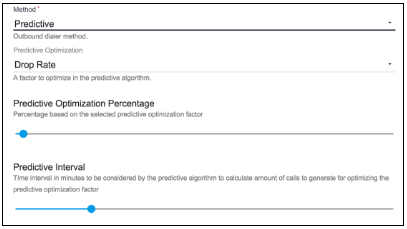
- Predictive Optimization: is a factor used to optimize the predictive algorithm:
- Drop Rate: factor used by the predictive algorithm to maintain the abandon rate at or below the Predictive Optimization Percentage
- Agent Busy Factor: actor used by the predictive algorithm to maintain the busy factor at or above the Predictive Optimization Percentage
- Predictive Optimization Percentage: Percentage based on the selected predictive optimization factor
- Predictive Interval: Time interval in minutes to be considered by the predictive algorithm to calculate amount of calls to generate for optimizing the predictive optimization factorRealtime
-
Max concurrent calls: same as Progressive
- Queue Timeout: same as Progressive
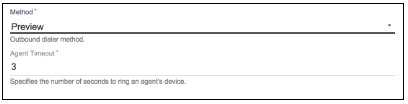
- if Preview there aren't any specific parameters to insert (see how Agents can handle Preview Campaigns calls using Omni Desktop & Phonebar here)
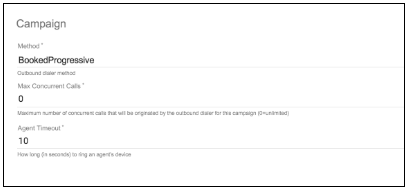
- if Booked Progressive the first available Agent is booked (it means he doesn't receive calls from the queues he belongs to) before starting the call to the contact of the list.
-
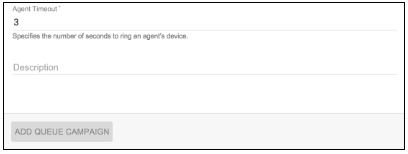
Agent Timeout: time in seconds an agent phone will ring (Default value=3). This value is requested for all types of Queue Campaigns
-
Description: a free description of the campaign
Click on ADD QUEUE CAMPAIGN at the end.
Remember you can change the chosen method and its settings editing the Queue Campaign (section Campaign, see later)
Once the Queue Campaign is added, you need to edit it in order to configure its features, choosing it from the list of Queue Campaigns as shown in the image below.
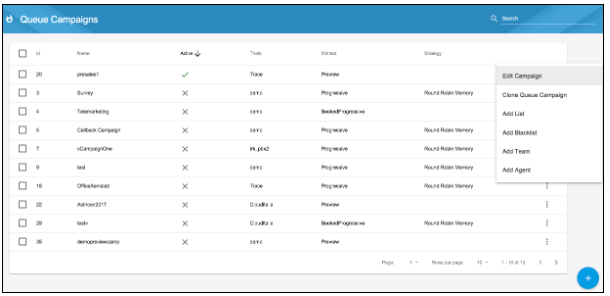
From the dropdown menu, you can quickly set some important configurations:
- Clone Queue Campaign
- Add List
- Add Blacklist
- Add Team
- Add Agent
You can perform these actions also from the complete Edit Queue Campaign section, using the buttons on the top bar.
In order to access to the complete Edit section, you should click on Edit Campaign.


- In the upper right buttons you have commands to Clone a campaign
 , manage Queue campaign associated Lists
  , Blacklists
  , Teams
  and Agents
  , to Restore List of contacts
  and to Go-to-Realtime
  (see Realtime view).
 - Int he first 4 Tabs you can set theQueue campaign parameters(Settings, Campaigns, Retry Settings and Advanced).
- In the latter 4 Tabs you can find the Queue campaign logs (Hopper, History, Final, Blacklist).
In the following paragraphs we will explore each section.
Settings
Settings
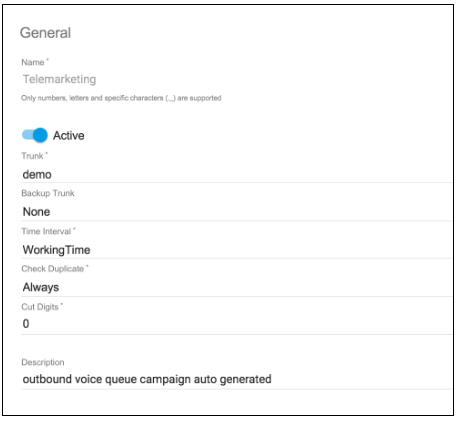
The General settings of the Queue Campaign can be modified here: Name, Trunk and Trunk Backup (if the main trunk is unreachable, the system will check if the trunk backup is available), Time interval and an optional Description.
The Check Duplicate Option, can be set to:
- Never will skip any check about the number being already loaded into the system (this may cause a multiple presence of the same number in the Hopper or the Final list)
- Always (default value) means that the system before loading the number checks if it is not already in any list (Hopper or Final)
- Only if Open means that the system before loading the number checks if it is not already in the Hopper list only
Insert in the Cut Digits the number of the caller id digits to prevent the customer to view (0 for none).
Please note that from the General Settings you can also START and STOP the Queue Campaign (switching beetween Active/Inactive).
Campaign
Settings
The General settings of the Queue Campaign can be modified here: Name, Trunk and Trunk Backup (if the main trunk is unreachable, the system will check if the trunk backup is available), Time interval and an optional Description.
The Check Duplicate Option, can be set to:
- Never will skip any check about the number being already loaded into the system (this may cause a multiple presence of the same number in the Hopper or the Final list)
- Always (default value) means that the system before loading the number checks if it is not already in any list (Hopper or Final)
- Only if Open means that the system before loading the number checks if it is not already in the Hopper list only
Insert in the Cut Digits the number of the caller id digits to prevent the customer to view (0 for none).
Please note that from the General Settings you can also START and STOP the Queue Campaign (switching beetween Active/Inactive).
Campaign
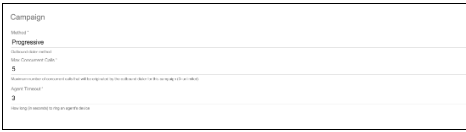
In this Section you can set:
-
Method: the chosen dialing method (see Dialing Methods for a general introduction). A list of configuration parameters (see abovefor further explanation) will be shown according to the chosen method
-
Max concurrent calls: the maximum number of concurrent calls that will be originated by the dialer for this campaign (where 0=unlimited calls)
- Agent Timeout: How many seconds to ring an agent’s device (default=3)
Queue
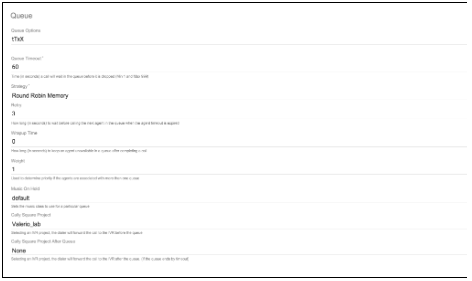
In this Section you can set:
- Queue Options: voice queue option strings. Learn more about queues Here. For more details about the available options see Asterisk 13 wiki pages https://wiki.asterisk.org/wiki/display/AST/Asterisk+13+Application_Queue)
- Queue Timeout: time in seconds the dialer waits for a call in the queue to be answered before dropping it. If the call is dropped, the dialer will not recall the contact in this queue campaign (Default value=3)
- Strategy: distribution strategy of queue calls to the agents in the queue. You can choose among the following values: Round Robin Memory, Least Recent, Fewest Calls, Random, Linear (Default value=Round Robin Memory (for more info about queues strategies see Here). The list of strategies that can be applied is related to the type of Method chosen.
- Retry: time in seconds to wait before trying to ring the next agent in a queue (Default=2).
- Wrapup time: the number of seconds to keep a member unavailable in the queue after completing a call (Default=0)
- Weight: Defines the weight of a queue. A queue with a higher value will get priority when members are associated with multiple queues (Default=1)
- Music on Hold: the music class that is applied for this queue. (Default=asterisk's default class). The default Music on Hold class we provide is noise (it means "no silence" when on hold). You can also create your own music class under Music On Hold section.
- Cally Square project: if you select an IVR project from the list, the dialer will forward the call to the IVR before putting it in a queue. This is helpful if you want to perform other functions like: query a database, playback or set a variable and so on, before forwarding the call in a queue (Default=None). In all cases the IVR is started for the customer, excluding the Preview campaigns, where it is started for the Agent.
- Cally Square project after queue: if you select an IVR project from the list for:
- Progressive, Predictive, Power queue campaigns, the dialer will forward the flow to the IVR project only if the caller exits the queue for timeout (the IVR is started for the customer)
- Preview, the dialer will forward the flow to the IVR project when the contact is not reachable any more (for reasons like: busy, no Answer, congestion, no such number) or when the customer ends the call (the IVR is started for the agent).
If you select an IVR project in this field, the following switch is shown (in all cases excluding Preview):
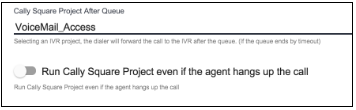
If you switch it on, if it is the Agent to hang up the call up, the IVR project is executed too. Anyway, the project will never be executed when it is the customer to hang the call up.
In order to create an IVR Project and use it you need to use CallySquare (about this topic see: Here)
Originate
-
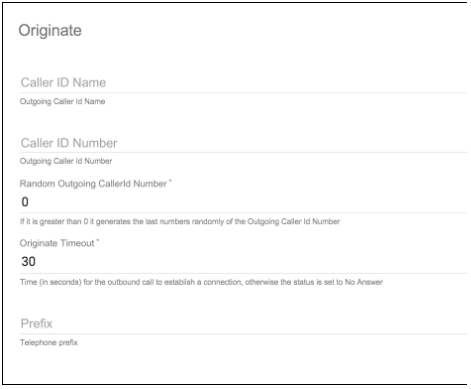
- Caller ID Name: when the dialer generates calls to contacts, it will set the outgoing caller ID name.
- Caller ID Number: when the dialer generates calls to contacts, it will set the outgoing caller ID number.
- Random Outgoing CallerId Number: the number of digits (starting from the end) to replace with random digits (0= none).
- Originate Timeout: time in seconds the dialer waits for a contact to answer the call (Default=30). If the call is not answered within the originate timeout, the call originate status will be set to No Answer and this contact will be recalled according to the Retry Settings parameters:
- global max retries
- no answer max retries
- no answer retry times
- The Telephone Prefix (if any)
Retry Settings
Global
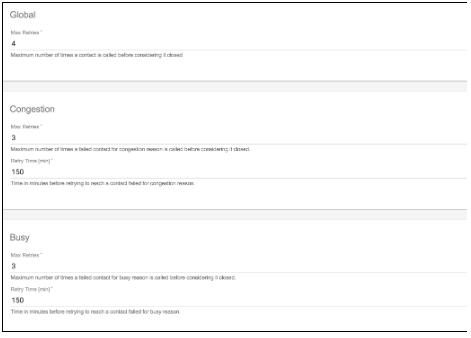
- Global max retries: the maximum number of times the dialer will recall a contact irrespective of the reason the call failed. After the global max retries, the dialer will consider the contact closed and will not recall again (Default=4).
Congestion
- Congestion Max retries: the maximum number of times the dialer will recall a contact failed for congestion reason (Default=3).
- Congestion Retry Time: time in minutes the dialer will wait before recalling a contact failed for congestion reason. The dialer will recall for congestion max retries as long as the global max retries is not reached. If congestion max retries is exhausted before global max retries, the contact will be closed for congestion and will not be called again.
Busy
- Busy Max retries: the maximum number of times the dialer will recall a contact failed for busy reason.
- Busy Retry Time: time in minutes the dialer will wait before recalling a contact failed for busy reason. The dialer will recall for busy max retries as long as the global max retries is not reached. If busy max retries is exhausted before global max retries, the contact will be closed for busy and will not be called again.
No Answer
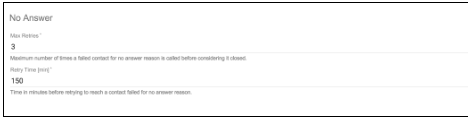
- No Answer Max retries: the maximum number of times the dialer will recall a contact failed for no answer reason.
- No Answer Retry Time: time in minutes the dialer will wait before recalling a contact failed for no answer reason. The dialer will recall for no answer max retries as long as the global max retries is not reached. If no answer max retries is exhausted before global max retries, the contact will be closed for no answer and will not be called again.
Note: Global max retries dominates max retries for congestion, busy and no answer. In total, a contact cannot be called more than the global max retries. Let’s consider the following values:
Global max retries = 4
Congestion: max retries = 3 , retry time = 150
Busy: max retries = 3 , retry time = 150
No answer: max retries = 3 , retry time = 150
-
Scenario 1: If a contact fails for busy reason 3 times consecutively, the contact will be closed for busy and will not be recalled.
-
Scenario 2: If a contact fails for busy 1 time then 2 times for No answer, it will be recalled one more time because busy max retries (3) , no answer max retries(3) and global max retries(4) are not reached.
-
Scenario 3: If a contact fails for congestion 2 times, it will be recalled and the contact will be closed for congestion if it fail for congestion for the third time; otherwise, it will be recalled for the fourth time.
Advanced
Advanced campaign features vary according to the method chosen. In the following section (on the right side) you can find the full list of the advanced parameters.
If the Campaign is Progressive, PowerDialing, Predictive:
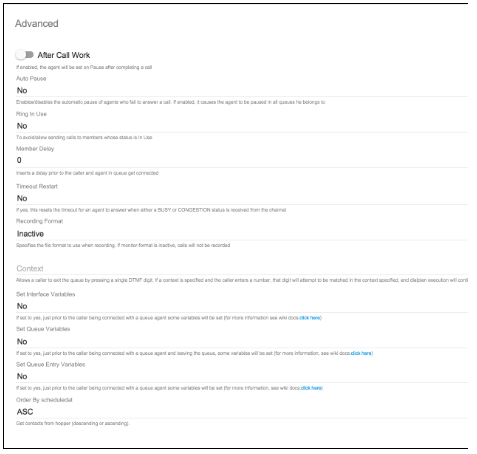
you will see the full list of the advanced features.
If the Campaign is Preview, BookedProgressive:
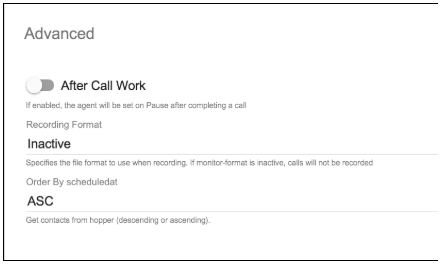
you only will see a subset of the whole advanced features list.
In this Section you can set:
- After Call Work: enable it you want the Agent to be set on pause after completing call on the queue (default=NO)
- After Call Work Duration: if the After Call Status is set to yes, insert here how many seconds the pause should last (this field is shown only if the ACW is set to yes)
-
AutoPause: set to YES if you want to pause the members who fail to answer a call, for all the queues he is member of (Default=NO)
-
Ring in use: set to NO if you want to avoid sending calls to members whose status is in use (Default=NO)
-
Member Delay: to set a delay prior to connect the caller and the queue member
-
Timeout Restart: If set to yes, resets the timeout for an agent to answer if either a BUSY or CONGESTION status is received from the channel
-
Recording Format: Specifies the file format to use when recording. If the value is inactive, calls will not be recorded.
-
Context: Allows a caller to exit the queue by pressing a single DTMF digit. If a context is specified and the caller enters a number, that digit will attempt to be matched in the context specified, and dialplan execution will continue there.
-
Set Interface Variables: If set to yes, just prior to the caller being bridged with a queue member some variables will be set (see Asterisk wiki for more information):
MEMBERINTERFACE is the interface name (eg. Agent/1234),
MEMBERNAME is the member name (eg. Joe Soap),
MEMBERCALLS is the number of calls that interface has taken,
MEMBERLASTCALL is the last time the member took a call,
MEMBERPENALTY is the penalty of the member,
MEMBERDYNAMIC indicates if a member is dynamic or not,
MEMBERREALTIME indicates if a member is realtime or not.
-
Set Queue Variables: if set to yes, just prior to the caller being bridged with a queue member and just prior to the caller leaving the queue some variables will be set (see Asterisk wiki for more information):
QUEUEHOLDTIME callers hold time,
QUEUEORIGINALPOS original position of the caller in the queue.
- Set Queue Entry Variables: If set to yes, just prior to the caller being bridged with a queue member some variables will be set (see Asterisk wiki for more information):
QUEUENAME name of the queue,
QUEUEMAX maximum number of calls allowed,
QUEUESTRATEGY the strategy of the queue,
QUEUECALLS number of calls currently in the queue,
QUEUEHOLDTIME current average hold time,
QUEUECOMPLETED number of completed calls for the queue,
QUEUEABANDONED number of abandoned calls,
QUEUESRVLEVEL queue service level,
QUEUESRVLEVELPERF current service level performance
- Order by Scheduledat: choose the order of the list in the Hopper (desc/asc)
Remember: the Contacts in the Hopper are dialed by Priority first, then by ScheduledAt

- in this section you can set the recall-me feature. When the Agent closes and disposes a call in a campaign, he can set an automatic recall request to the system: in this case the system tries to recall the customer and to pass the call to the specific agent for the time (in minutes) inserted in the Recall Me Timeout. If this is not possible (e.g. the Agent is not available) the call is dropped, unless the Recall in Queue flag is set: this option enables the call to be passed to any available agent belonging to the same queue.
Global Interval

-
before calling a contact the system checks if the global interval is OK and then it considers the other interval set (default: 07:00-22:00,*,*,*)
-
The include syntax is defined like this:
<time range>,<days of week>,<days of month>,<months>
where:
<time range>= <hour>':'<minute>'-'<hour>':'<minute>
|"*"
<days of week> = <dayname>
| <dayname>'-'<dayname>
| "*"
<dayname> = "sun" | "mon" | "tue" | "wed" | "thu" | "fri" | "sat"
<days of month> = <daynum>
| <daynum>'-'<daynum>
| "*"
<daynum> = a number, 1 to 31, inclusive
<hour> = a number, 0 to 23, inclusive
<minute> = a number, 0 to 59, inclusive
<months> = <monthname>
| <monthname>'-'<monthname>
| "*"
<monthname> = "jan" | "feb" | "mar" | "apr" | "may" | "jun" | "jul" | "aug" | "sep" | "oct" | "nov" | "dec"
daynames and monthnames are not case-sensitive.If you replace an option with *, it is ignored when matching
Please note that the system default Global Interval is from 7 AM to 10 PM: it means that the campaign will never be operational out of this range unless you change it, even if the Time Interval in the General Settings is set to always.
We advise you to pay attention to the regulations that apply to calls campaigns in your country.
Timezone

Before calling a contact the system checks if the time is right. In this field you can choose a different time zone for the specific campaign you're configuring
e.g.: if you have a server in Italy and you configure a global interval (18:00-20:00,*,*,*) and timezone Australia/Sydney, the system will start to call in Sydney when it is 18:00 and in Italy when it is 10:00.
Pay attention that the timezone is related to the campaign (not to single contacts). It is better to separate the list of contacts with different timezone
AMD (Answering Machine Detection)

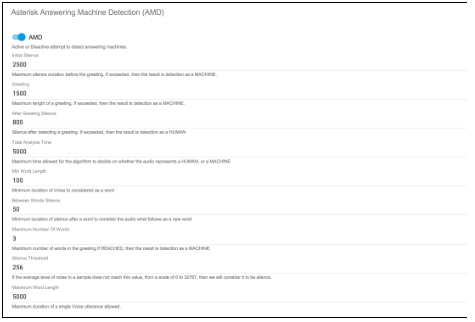
Be sure you are enough skilled to do this: this may cause losing contacts interactions if the system doesn't recognize properly a human from a machine answering!
For more information see asterisk documentation Here.
Add List to a Queue Campaign
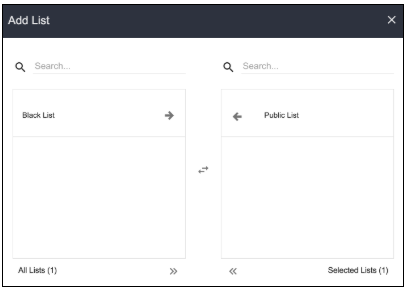
You need to add an already existing list of contacts to be used in the queue campaign for the dialer to call. When you add a list in a queue campaign, all contacts in the list are placed in the Hopper and will be called by the dialer.
You can add multiple contact lists to a queue campaign.
See Create a list for creating a List of Contacts and Upload contacts for uploading contacts in the list created (read carefully the specific part about uploading a list of contacts that will be used for a campaign).
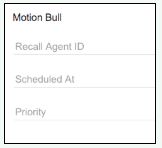
Read carefully the specific info to be inserted when uploading a list of contacts that will be used for a campaign:
If you remove a list from a campaign and add it again:
- only open contacts are placed in the Hopper and will be dialed by the dialer.
- closed contacts (contacts that are already in the Hopper Final) will not be placed in the Hopper and will not bedialed by the dialer.
Add Agents / Teams to a queue campaign
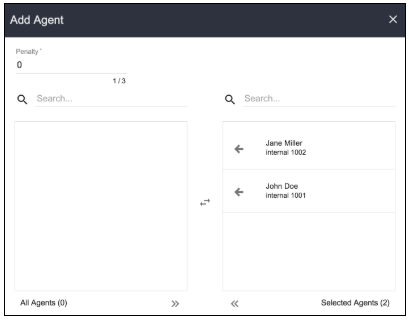
There must be at least one available agent in the queue for the dialer to start placing calls. Hence you must add agents in the queue campaign that will connect and manage contacts. You can add one agent at a time or add them all in a Team (group of agents).
You must configure a trigger if you want to display contact’s detailed information to the agent connected to the contact.
Add Blacklist to queue campaign
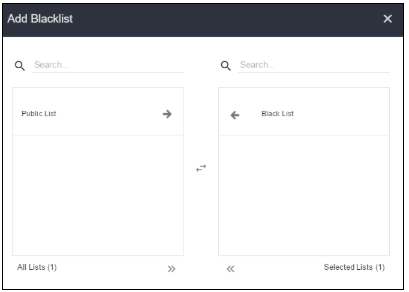
If you have list of contacts you want to exclude from the queue campaign, you can add it as blacklist and the dialer will skip these contacts during the automatic dialing. The (black)List must be already available.
You can add multiple blacklists for a queue campaign and use different blacklists for different queue campaigns.
See Create a list for creating a Blacklist and Upload contacts for uploading contacts in the list created.
This is an optional setting
Start the Queue Campaign
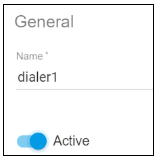
Remember to under the General Settings Queue Campaign and enable the "Active" switch.
The Dialer will now ready to start and originate calls, routing them to Agents according to the chosen Dialing Method!
Queue Campaigns Troubleshooting
If the dialer does not start making calls, please make sure:
- The queue campaign is Active
- the global interval of the campaign is correct
- The current time is within the time interval set
- the time zone and the interval chosen for the campaign match
- There are contacts in the list
- There are available agent in the queue
- The trunk is properly configured
Monitoring queue campaign results
The Hopper Sections (Hopper, History, Final) and Blacklist
The Sections useful for monitoring Queue Campaigns are the following:
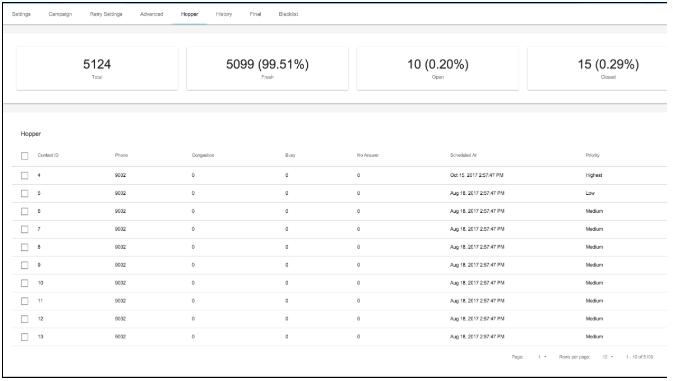
Hopper: contains list of contacts that are going to be called by the dialer at a scheduled time:
- When you add a list in a queue campaign, all contacts in the list are placed in the hopper.
- When you add new contacts in the associated list, the system will automatically add the new contacts to the hopper.
-
Where the four widgets on top show:
- Total: the total number of contacts in the list
- Fresh: total number of contacts that are in line to be dialed by the dialer for the first time
- Open: total number of contacts that have been dialed (at least once) and are still in line to be dialed
- Closed: is the total number of contacts already called and closed
The contacts scheduled at the same time will be called according to their priority level.
0 = Lowest
1 = Low
2 = Medium
3 = High
4 = Highest
The contacts Priority and Scheduled At can be changed (Edit the Hopper Contact).
Note: Before placing a call to a contact in the hopper, the dialer checks if the contact exists in the blacklist and skips it if it does exist.
Note: about ScheduledAt ordering see here
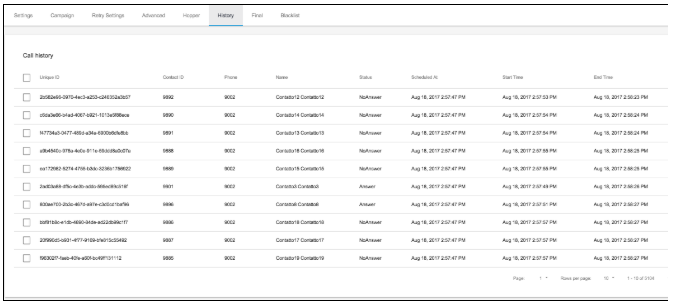
- Hopper History: contains history of calls originated by the dialer. Status, start time and end time of every call that was dialed by the dialer is logged in the hopper history
Click here for the Calls Status List Table
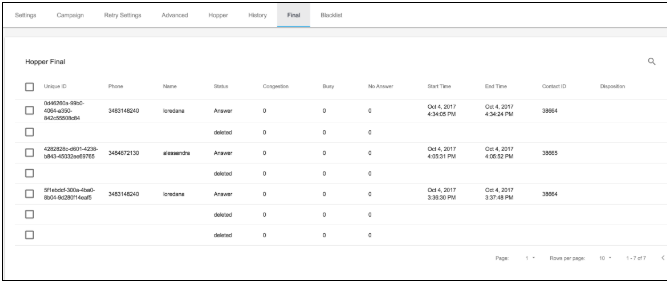
- Hopper Final: contains list of closed contacts (because successfully managed or for other reasons).
Click here for the Calls Status List Table
You can move one or many contacts from Final to Hopper: they will be restored in the Hopper and the Dialer will call them again. This function is not allowed
- if they have Status=Answered.
- if a Contact Id is already in the Hopper (this prevents multiple identical contacts to be restored in the Hopper).
Once you restore a contact, this is not moved from Final to the Hopper but a new entry is added to the Hopper.
Restore Contacts
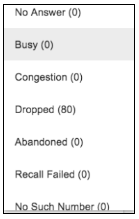
You can restore contacts in several ways:
- click on
 up right and select one of the Calls Status List to restore, choosing among those available from the pop-up screen:
- select one item in the list and click on
 and then on
  to restore a single contact
 - select one or more items clicking the corresponding checkboxes and then click the icon

- Blacklist: contains list of contacts that are excluded from the queue campaign
- The Tag Blacklist contains lists of contacts that must be excluded from the IVR campaign.
Key Points
- If a contact is successfully connected to an agent, the contact is moved from the Hopper to Hopper Final and will not be called again.
- If a call has failed, the number of times it failed for congestion, busy and no answer will be shown in the Hopper as long as the max retries are not reached. When the max retries are exhausted, the contact will be moved to the Hopper Final and the status will show the reason the contact has been closed.
- Once contacts are moved to the Hopper Final, if you remove the list from the campaign and add it again, only open contacts (contacts that are not in the Hopper Final) are placed in the Hopper and dialed by the dialer. This will avoid unnecessary calls to closed contacts.
Comments
0 comments
Please sign in to leave a comment.